How to restore discussion posts
In the event that you accidentally delete discussion posts, those posts can be restored using the following procedure. NOTE: Only users with appropriate roles in the course (for example, Instructor or TA – Full Access) have permission to delete or restore Discussion posts.
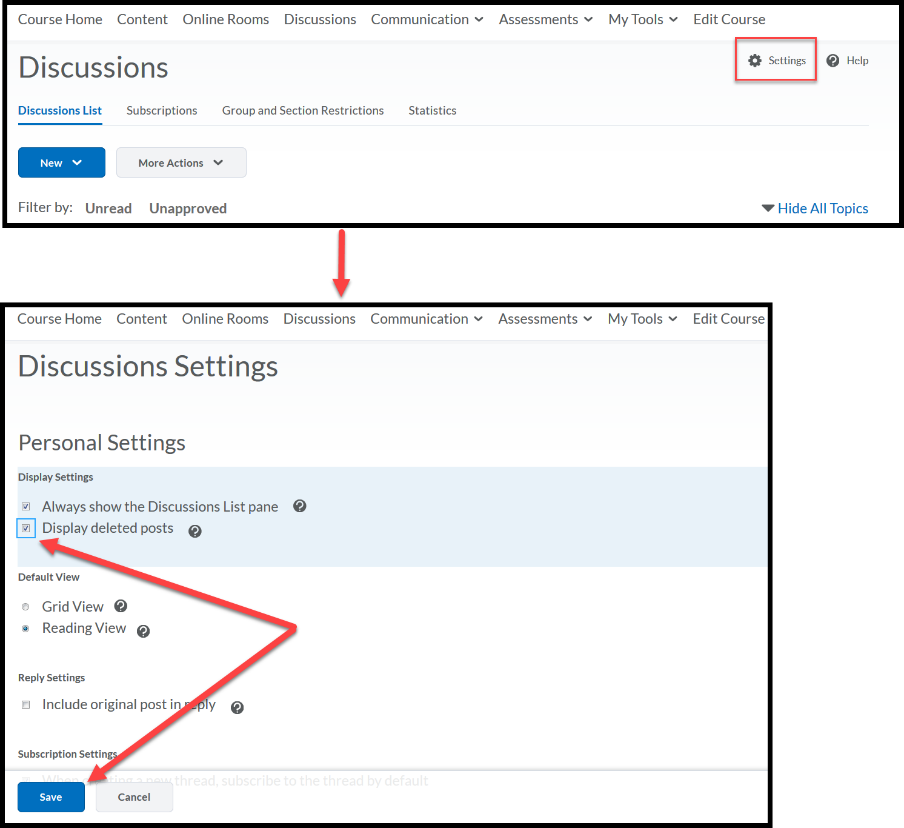
1. Change your Discussion settings to Display deleted posts.
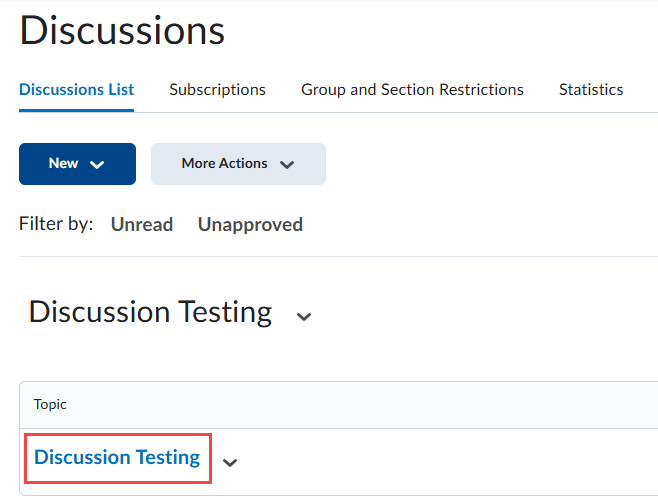
2. Click on the title of the Discussion Topic containing the deleted message thread you wish to restore.
3. The steps vary depending on the Discussion view you are using:
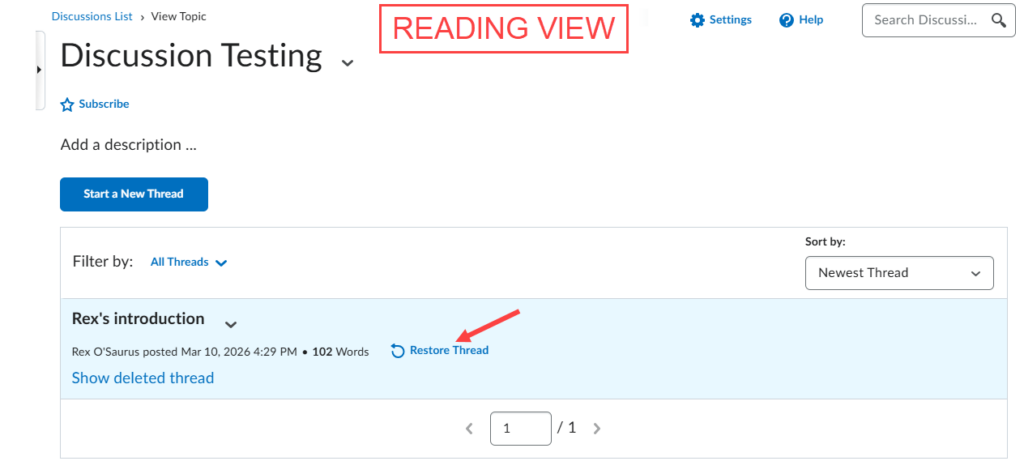
In Reading View, click the blue Restore Thread link to the right of the message thread you want to restore.
If the message thread you are restoring contains reply messages and you would like to restore them, place a checkmark in the “Also restore any replies to this thread” box. Click Yes to complete the process.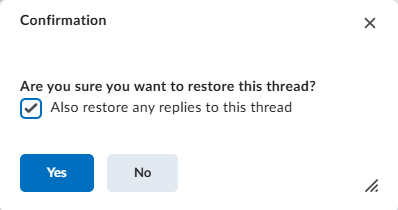
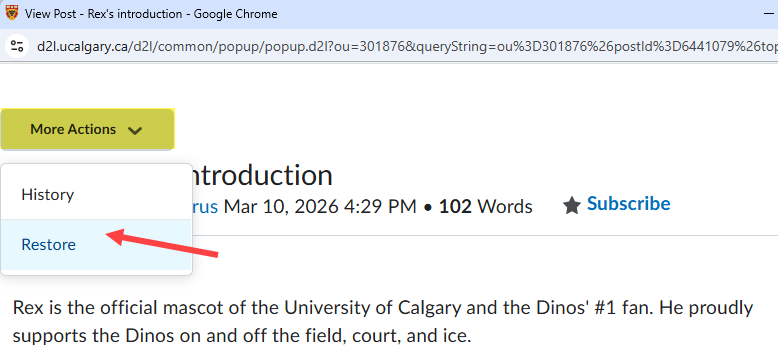
In Grid View, click the deleted discussion thread (the crossed‑out message) to open it.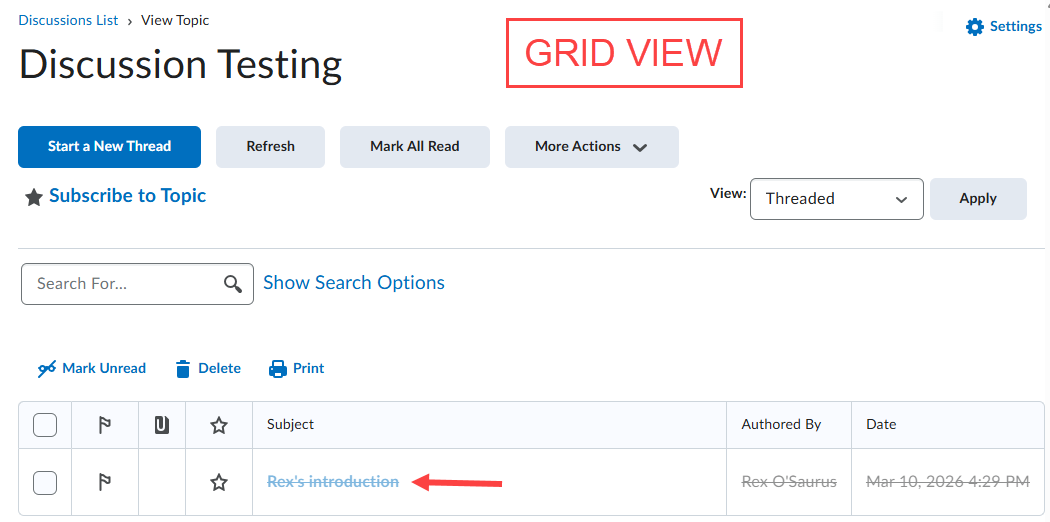
Click on More Actions and select Restore. Note: In Grid View, replies need to be restored individually.