
Take Attendance on Zoom
Instructors may wish to track attendance for Zoom lectures to better understand student participation and engagement or to maintain a record of attendance. There are two places where attendance information can be accessed for Zoom classes:
1) D2L – Zoom
2) Zoom Web Portal (for meetings created outside of D2L.)
I. D2L Zoom Meeting Report
1. Go into the D2L course in which the Zoom meeting was created.
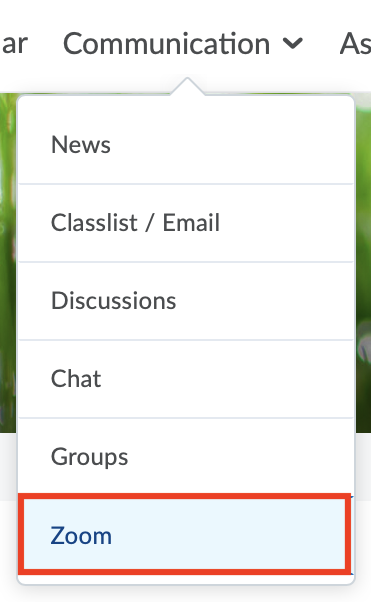
2. From the course navbar, select Communication, then Zoom.
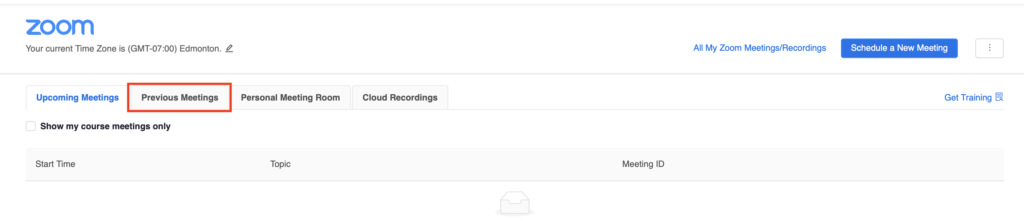
3. Go to Previous Meetings.
4. Select the meeting you would like to get a report for and click View Meeting Report.
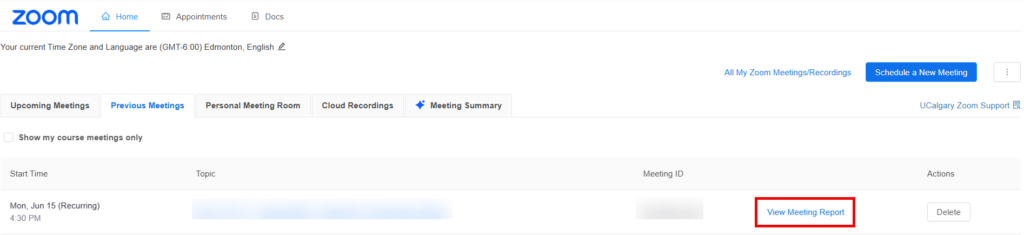
5. The meeting report will indicate the Name of each participant, their Join and Leave Time, and the Duration of their presence in the meeting. It is exportable as a CSV file.

II. Zoom Web Portal Meeting Report
1. Sign in to your Zoom account at https://ucalgary.zoom.us
2. From your Profile, click on My account, then select Reports on the left hand side and choose Usage reports.
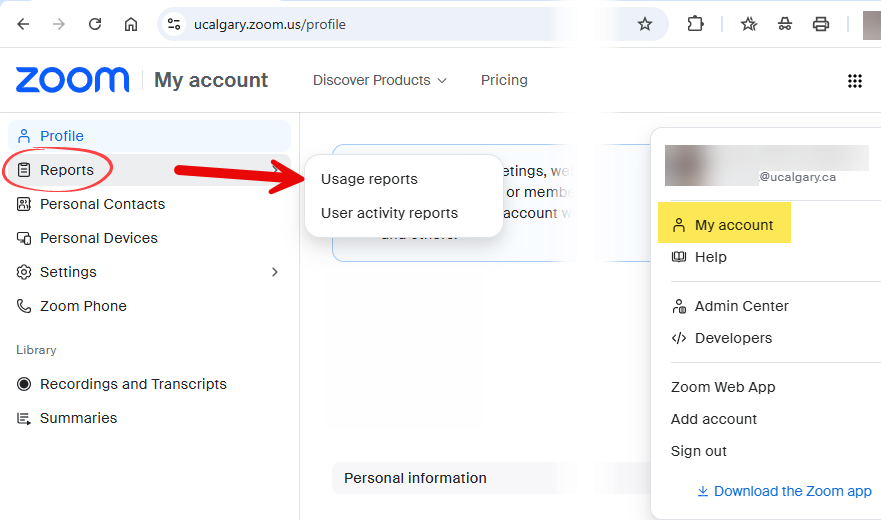
3. Click Meeting and webinar history.

4. Select the desired time range and click Search to display the meetings. Note: Maximum report duration: 1 Month
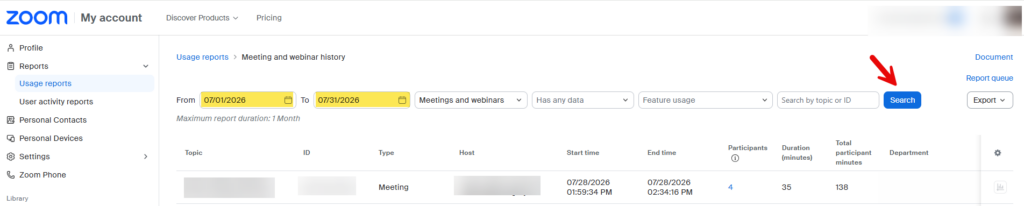
4. Click the hyperlink showing the number of Participants to view attendance details. If needed, you can Export the data as a CSV file.