
Changing or removing course banner
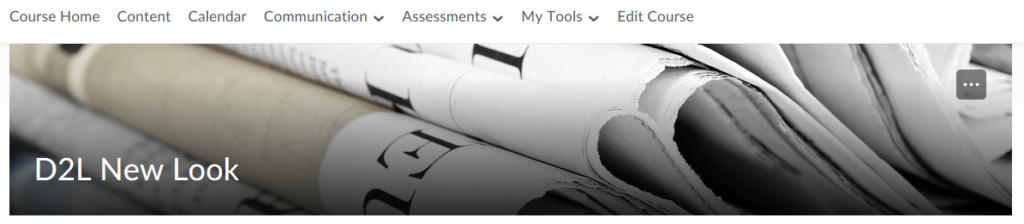
The Course Banner can be customized by selecting an image from the D2L Library, or by uploading an image from your personal files.
NOTE: In order to change the course banner, you need to have Instructor, TA-full access, TA-No grading or Course Administrator role.
Modifying Course Banner
Note: All standard image file types are supported. We recommend course images be 2400 x 960 pixels and that they do not contain text. This ensures they can be resized to look great in different contexts and on different devices. See below for an example of how the same banner image displays in thumbnail format (left) and in banner format (right).
Original image format

Banner image format
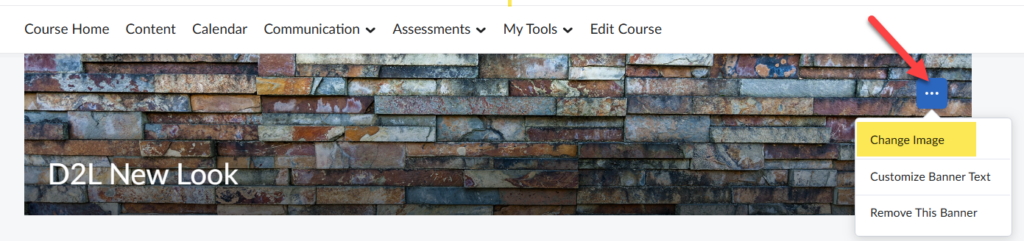
1. Within your D2L course, click the … icon at the top-right corner of the default banner, then select Change Image.
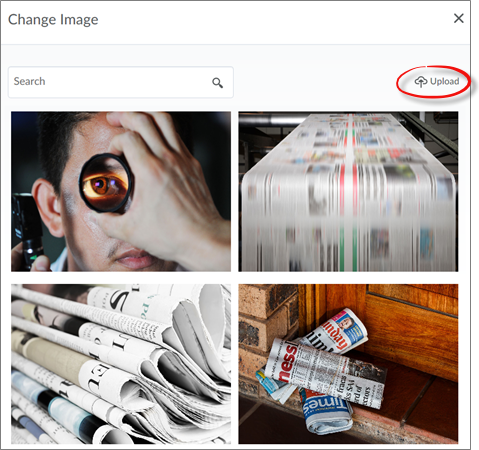
2. Scroll through the image library or do a word search to find an image, or choose Upload to use your own picture.
Removing course banner
Remove the banner from the course as follows:
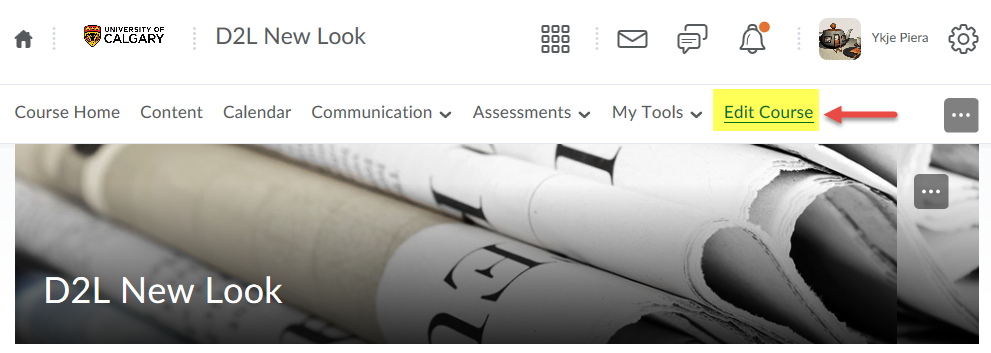
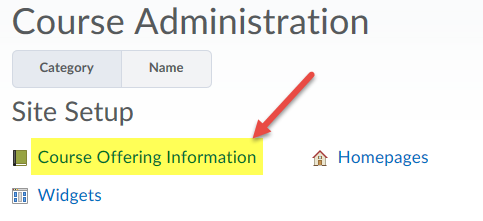
Uncheck Display the image in a banner on the course homepage and click Save.
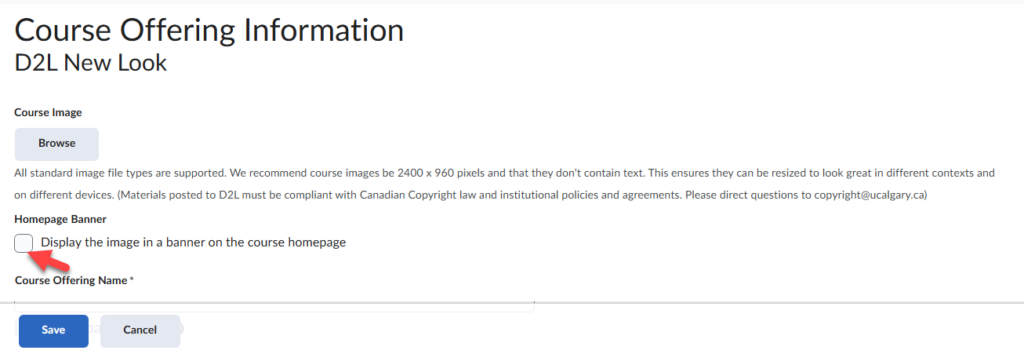
Note: Although it is possible to remove the banner from the course page, it is not possible to remove the banner from the D2L Home Page (thumbnail image)
Adding text to your banner
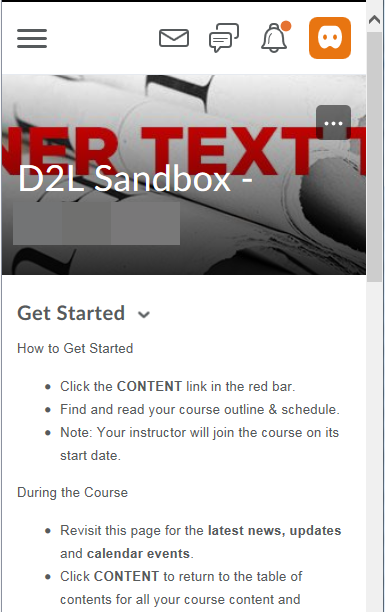
We do not recommend adding text to your banner. Below are screenshots of how text will appear in thumbnail, banner, and responsive modes:
Original

Banner

Thumbnail

Responsive
Copyright information
Materials posted to D2L must be compliant with Canadian Copyright law and institutional policies and agreements. Please direct questions to copyright@ucalgary.ca.